
Your screen time, one command away.
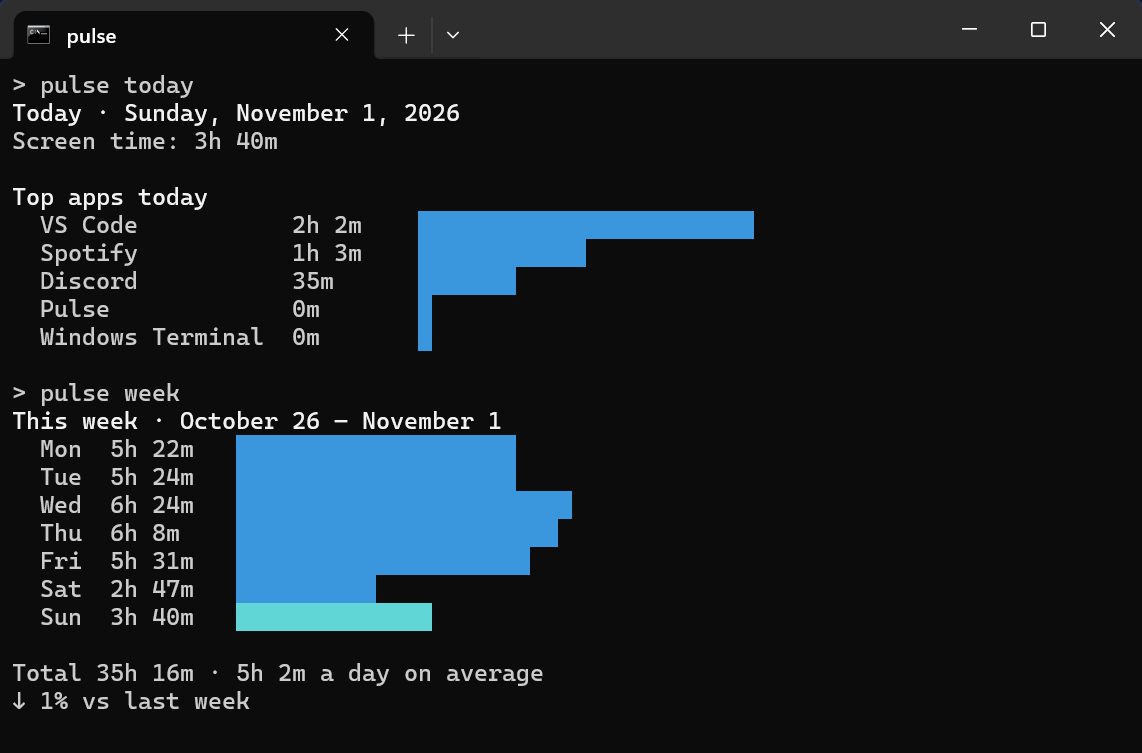
Pulse installs a pulse command next to the app. Check today, this week or your top apps from Terminal or PowerShell, and start or stop Pulse without opening a window. Free, like everything else in Pulse.
How it works
- 1
Install Pulse
The pulse command comes with the app. There’s nothing extra to download.
- 2
Open a terminal
Terminal, PowerShell or Command Prompt. Type pulse help to see every command.
- 3
Read, don’t record
The command only reads what Pulse records on your PC. Nothing leaves it.
What you get
- pulse today, pulse week and pulse apps show the same numbers as the app
- pulse start runs Pulse in the notification area; pulse stop saves and quits it
- Comes with both the Microsoft Store and the GitHub installer, in the app’s language
Common questions
Which commands are there?
pulse today shows today’s screen time and top apps, pulse week shows this week, and pulse apps lists your top apps. pulse start runs Pulse in the notification area and pulse stop saves and quits it. Type pulse help to see everything.
Do I need to install anything extra?
No. The pulse command comes with both the Microsoft Store and the GitHub installer. After installing, open a new terminal window so it can find the command.
Does the command line send my data anywhere?
No. It only reads what Pulse has already recorded in the local database on your PC. Nothing leaves it.
Works well with
Try command line today.
Free for Windows 10 & 11 · no account needed