Digital Wellbeing for PC · Windows 11 & 10
Digital Wellbeing for PC: see where your screen time goes.
Your phone tells you how long you spent on it today. Your PC doesn’t. Pulse is a free, open-source app that adds screen time, app usage, app limits, focus sessions and eye-break reminders to any desktop or laptop. No account, and nothing leaves your PC.
Windows 11 & 10 · desktops and laptops · no admin rights
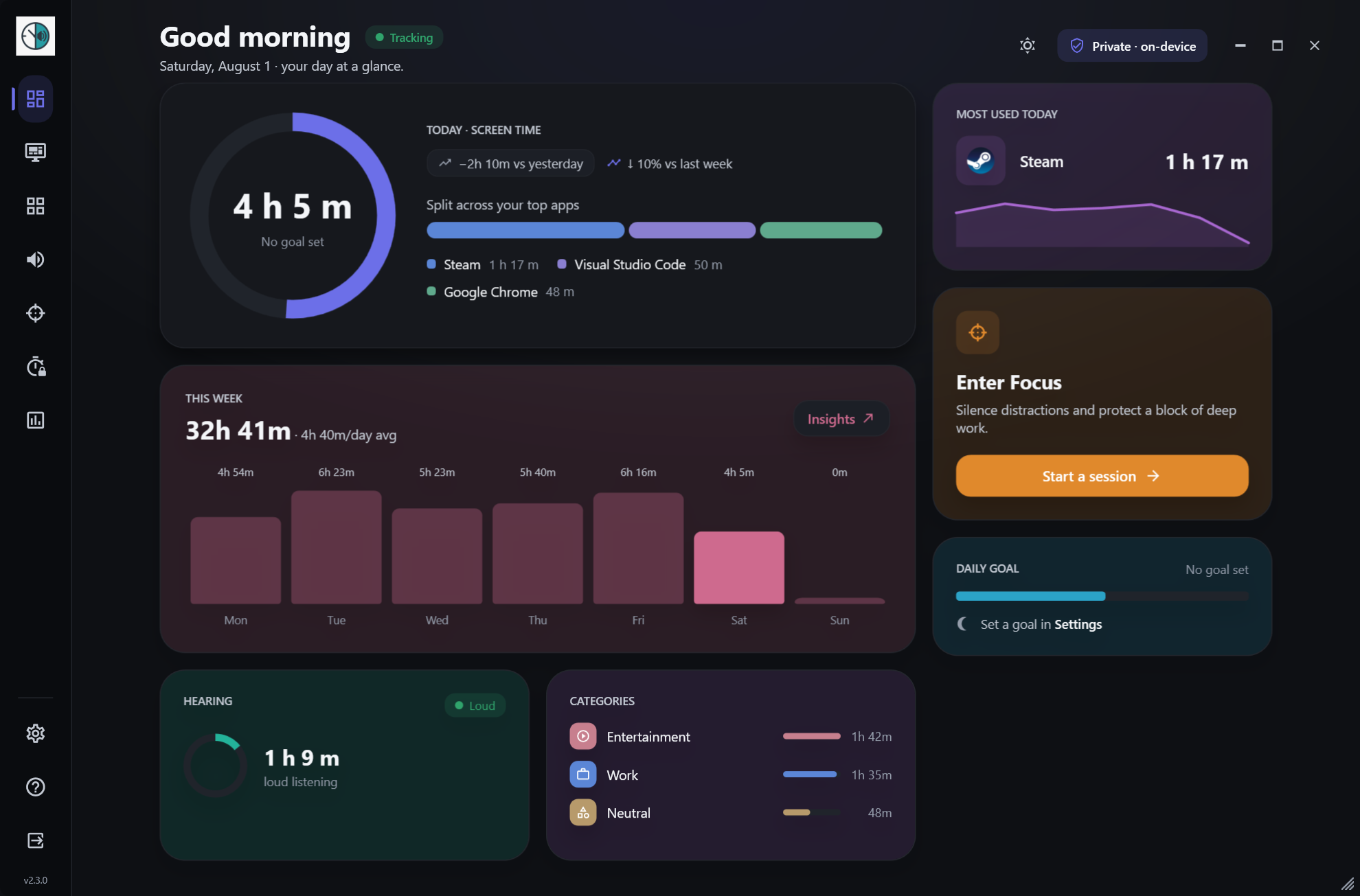
In short: Windows shows screen-on time on laptops and screen time for children’s accounts, but it has no Digital Wellbeing dashboard for your own account. Pulse fills that gap on Windows 11 and 10. Install it, use your PC as normal, and open the dashboard to see today’s screen time and your top apps.
What Digital Wellbeing means on a PC
Digital Wellbeing started on phones. Android calls it Digital Wellbeing and iPhone calls it Screen Time, and both do the same few things: show how long you spent on the device, which apps took that time, and give you gentle tools to change it if you want to.
A computer has a different kind of day. It’s where you work, study, game, watch and chat, often in the same hour. So Digital Wellbeing for PC comes down to four questions:
- How long was I actually at my PC today, not counting time away?
- Which apps took most of that time?
- Can I give the apps that eat my evenings a daily budget?
- Can I protect an hour of deep work from distractions?
None of it forces you to change. It shows you the numbers and gives you a few levers.
Why your PC needs it as much as your phone
Many people spend more hours at a computer than on their phone, and those hours are harder to see. A work day blurs into an evening of videos, and without numbers it’s hard to tell a productive day from a scattered one.
Your body notices too. Long stretches at a screen tire your eyes, and hours in headphones add up for your ears. Read more in the 20-20-20 rule.
What Windows 11 and 10 have built in, and what’s missing
Windows has a few tools that touch on screen time. Each answers part of the question.
Battery usage (laptops only)
Shows: Screen-on time and how much battery each app used, for the last 24 hours or 7 days. On Windows 11 it’s under Settings → System → Power & battery → Battery usage; on Windows 10, Settings → System → Battery.
Missing: It measures battery, not attention, and desktop PCs don’t have the page at all. There are no limits.
Microsoft Family Safety
Shows: Screen time reports and limits for a child account in your Microsoft family group.
Missing: It isn’t for your own account, and it needs a Microsoft account and Microsoft’s cloud to work.
Focus in the Clock app
Shows: A timer that silences notifications while you work.
Missing: It doesn’t track how long you spend in apps, and it can’t limit or block them.
So for an adult on a desktop PC, Windows has nothing that answers “how long was I on my PC today?”. Step-by-step guides: Windows 11, Windows 10 and laptops.
What Pulse adds to your PC
Pulse brings phone-style Digital Wellbeing to the desktop. Every feature is included for free.
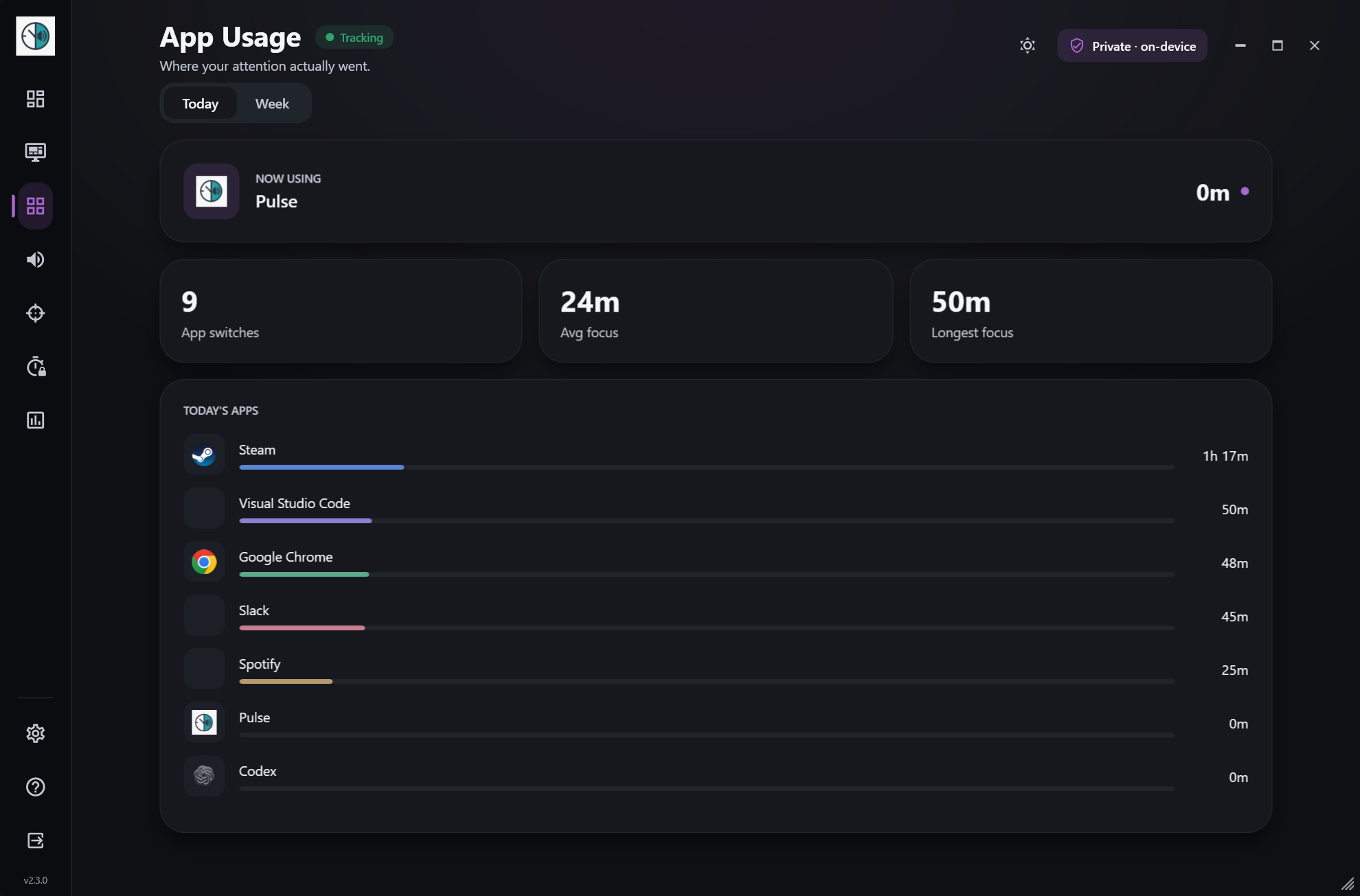
App usage: your top apps by time, with switches and average focus.
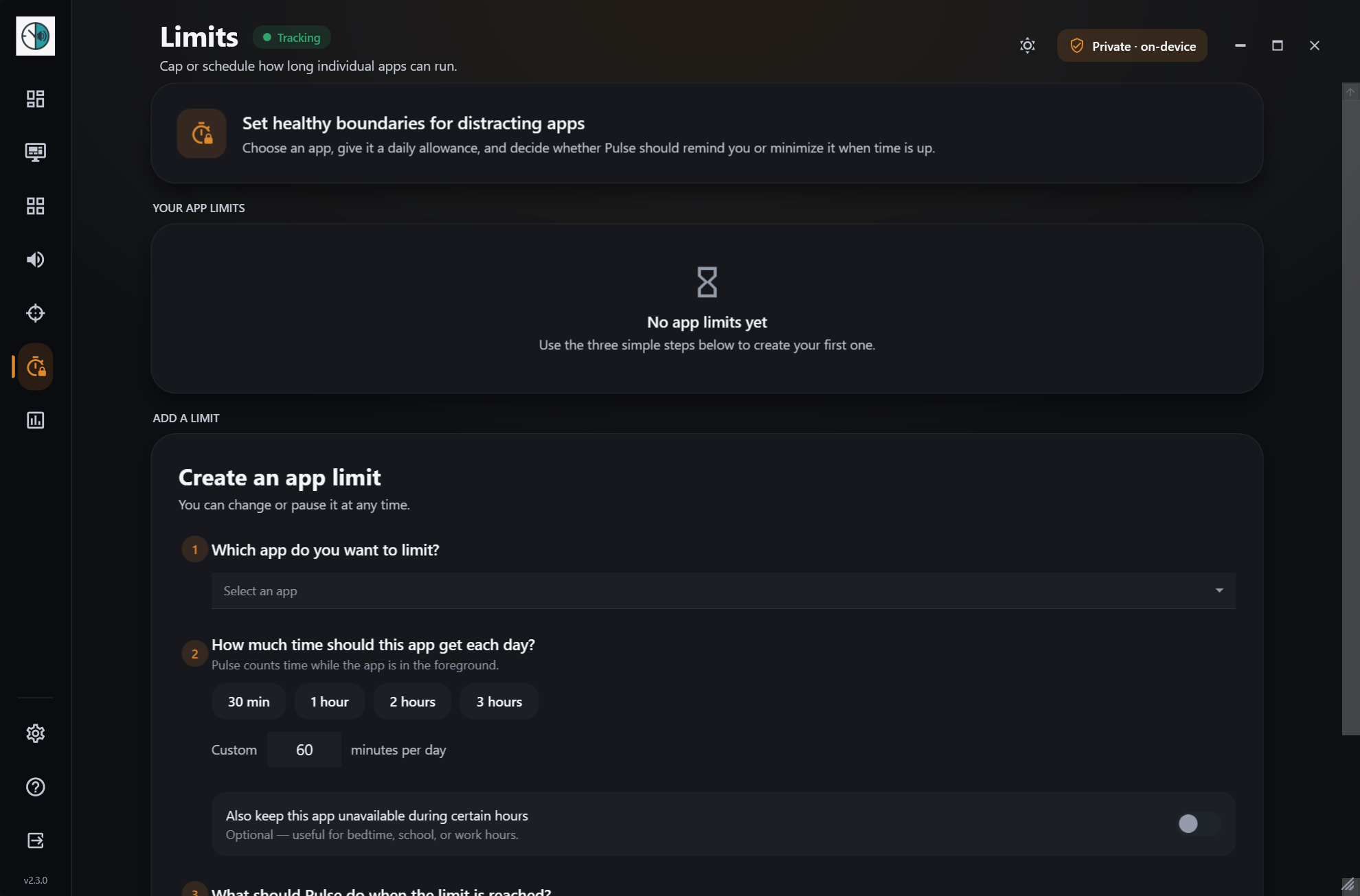
App limits: a daily allowance or unavailable hours for any app.
Who Digital Wellbeing for PC helps
Students
Study, games and videos share one laptop. A focus session in Block mode keeps entertainment apps minimized until the timer ends.
Remote workers
When home is the office, the day has no natural end. Screen time shows your real hours, and wind down tells you when to stop.
Gamers
Give a game a daily allowance instead of a ban. Pulse reminds you when time is up, or minimizes the game if you want it strict.
Parents of teens with their own PC
Pulse isn’t a locked-down parental control: whoever uses the PC can pause a limit. It works best when a teenager installs it on their own PC and you agree on goals together. For enforced limits on a child account, Microsoft Family Safety is built for that.
Anyone with tired eyes or ears
20-20-20 reminders prompt you to look away, and the hearing page shows how long your headphones were loud.
Private by design
A wellbeing app sees a lot about your day, so where that data goes matters. Pulse has no account, no cloud sync and no telemetry. Everything is stored in a local database on your PC.
- Export to CSV, back up and restore, or delete a date range from Settings.
- Optional website tracking is off by default and stores hostnames only, like youtube.com.
- The hearing feature reads the volume level and never records audio.
- The code is open source under GPL-3.0, so anyone can check.
Get started in 3 steps
- 1Download PulseGet it from the Microsoft Store, or download Setup.exe from the download page. It’s free, needs no admin rights, includes .NET and updates itself.
- 2Use your PC as normalPulse runs in the system tray and counts quietly. Closing the window keeps it tracking.
- 3Check your dayOpen the dashboard for today’s screen time and top apps. After a week, the weekly report shows your pattern. Then pick one change, like a limit on one app or one focus session a day.
Digital Wellbeing for PC: common questions
Is there a Digital Wellbeing app for PC?
Windows doesn’t include Digital Wellbeing for your own account the way Android does. Pulse is a free, open-source app that adds it to Windows 11 and 10: screen time, app usage, app limits, focus sessions, break reminders and weekly reports.
How do I check my screen time on a PC?
On a Windows 11 laptop, open Settings → System → Power & battery → Battery usage to see screen-on time. On Windows 10, it’s Settings → System → Battery. Desktop PCs don’t have that page, so install Pulse to see your active screen time and top apps on any PC.
Does Pulse work on laptops and desktops?
Yes. Pulse runs on any desktop or laptop with Windows 10 or Windows 11, and it counts screen time the same way on both.
Is Pulse really free?
Yes. Pulse is open source under GPL-3.0. There is no paid tier, no trial and no ads inside the app.
How do I install it?
Get Pulse from the Microsoft Store, or download Setup.exe from GitHub. Neither needs admin rights or an account, .NET is included, and Pulse keeps itself up to date.
Can I set time limits for apps on my PC?
Yes. In Pulse, give any app a daily allowance, unavailable hours, or both. When time is up, Pulse reminds you every 5, 15, 30 or 60 minutes or once a day, or minimizes the app. You can pause a limit whenever you need to.
Can Pulse block distracting apps?
During a focus session in Block mode, Pulse minimizes apps you tagged as Entertainment. App limits can also minimize an app when its time is up, and minimize it again within seconds if you reopen it.
Does Pulse send my data anywhere?
No. There is no account, no cloud sync and no telemetry. Everything is stored in a local database on your PC, and you can export it to CSV, back it up, or delete a date range.
Does Pulse keep tracking when I close the window?
Yes. Closing the window keeps Pulse running in the system tray. Quit it from the tray icon when you want it to stop.
Is Pulse made by Google or Microsoft?
No. Pulse is an independent, open-source project inspired by Digital Wellbeing on Android. It isn’t affiliated with Google, Samsung or Microsoft.
Get Digital Wellbeing on your PC.
Free for Windows 11 & 10 · desktops and laptops · no account needed